

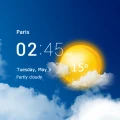
Transparent clock and weather
MACHAPP Software Ltd
Weather apps are easy to judge when the sky is clear, but their real value appears when I am leaving home in a hurry, deciding whether to carry a coat, or watching a storm move toward a planned trip. Transparent Clock and Weather, developed by MACHAPP Software Ltd, is built around that everyday decision-making. It combines a clock, weather information, radar views, forecasts, and widgets in one Android app, rather than asking me to open several separate tools.
After using it as a regular weather companion, I found that its strongest quality is convenience. The information is designed to stay close to the home screen, while the deeper forecast and radar views are there when I need more context. That makes it more practical than a simple temperature display, although it also means the experience depends heavily on current data connections and on how much time I want to spend adjusting the interface.
It is free to install and suitable for Everyone, with optional in-app purchases ranging from $4.99 to $15.99 per item. The app has been available since August 23, 2012, and its current version is 9.01.2, running on Android 6.0 or later. With a 4.2 average from around 986 thousand ratings and over 50 million installs, it is clearly an established choice rather than an obscure weather utility.
Related News
Why the Weather App is Your Go-To for Accurate Forecasts
Windy.com - Transforming Weather Forecasting with Stunning Precision
How Transparent Clock and Weather handles connected weather information
Why the network matters during ordinary checks
The app feels most useful when I treat it as a live information tool instead of a static clock. A weather forecast has to reflect changing conditions, and radar is especially dependent on fresh information. When I open the app before going out, I am not merely checking a decorative temperature; I am looking for a current picture of rain, storms, and temperature changes. That makes the quality and timing of the connection part of the experience, even though the interface itself remains familiar and easy to approach.
This becomes obvious when weather changes quickly. A morning forecast may suggest a dry commute, while a later radar view shows a developing band of rain. In that situation, the radar is more helpful than a single daily icon because it gives me a visual sense of movement and timing. I still would not treat any weather app as a guarantee, but the combination of forecast and radar helps me make a better practical choice than relying on the appearance of the sky alone.
Related News
Instagram Is No Longer a Photo App. It Is an Attention Engine
Microsoft Teams Mobile: When Collaboration Becomes Navigation

How the NFL App Adapts to Android and iOS Updates

Temu: Elevate Your Shopping Experience to Billionaire Status

Why Traffic Rider Works Best as a Precision Reflex Game
How Google’s Find Hub Transforms Everyday Searches
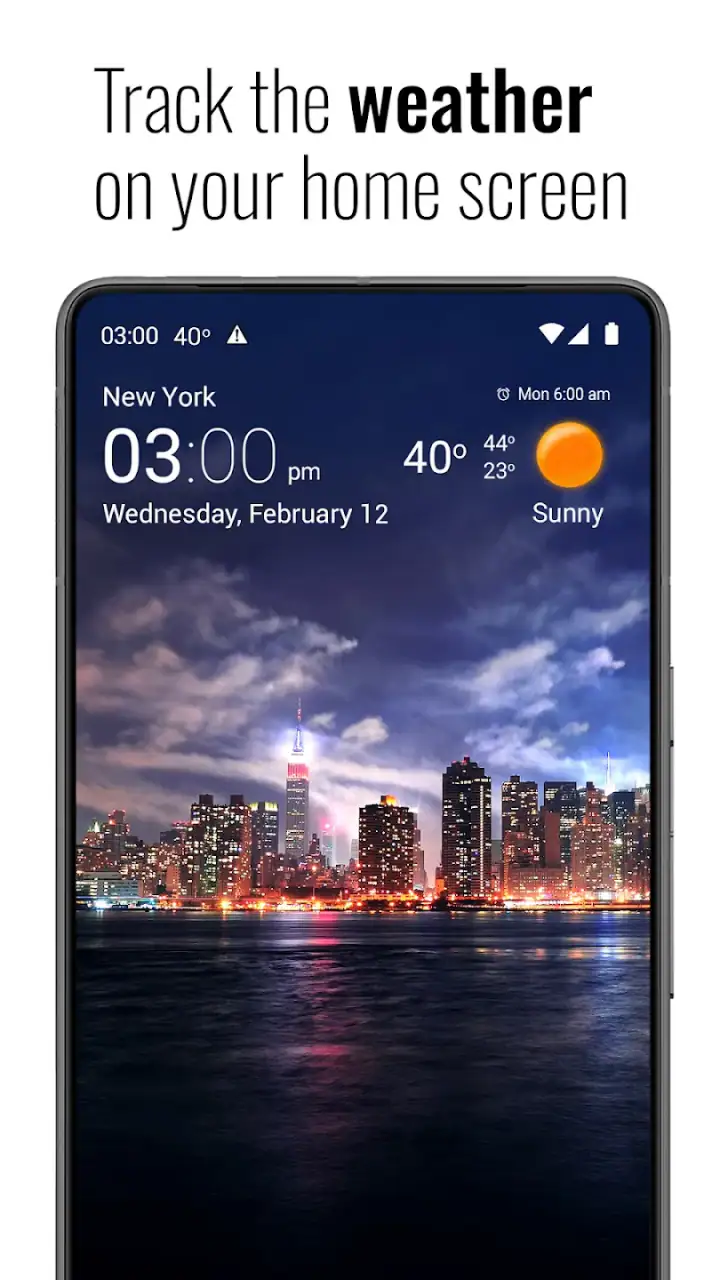
The clock and widget elements also change how often I interact with the app. Instead of remembering to launch a weather service, I can use the home screen as a quick checkpoint. That is particularly useful for people who check the weather several times a day but do not want a full-screen forecast every time. The trade-off is that a widget is only as useful as the freshness of the information it presents, so I pay more attention to the last update when conditions are unsettled.
A realistic commute and weekend example
Imagine I am getting ready for work and see a warm temperature on the widget. Before leaving, I open the fuller view and check the forecast alongside the radar. If the radar suggests rain approaching during my return journey, I can carry an umbrella even if the morning itself looks pleasant. This is a small workflow, but it is exactly where the app earns its place: the widget handles the first glance, while the radar helps with the decision behind it.
I use a similar approach before a weekend walk. I do not just look for a favorable icon. I check whether the forecast changes later in the day and whether the radar shows a larger weather system nearby. That extra step prevents the common mistake of planning around the first number I see. Transparent Clock and Weather is not replacing judgment, but it makes the relevant information easier to reach.
Gallery
For travel, I would still check the destination separately and allow time for updates before setting off. A weather app can show useful conditions for a selected location, but planning a long journey requires more than one quick glance. The app works best as a convenient planning layer, not as the only source I would trust for a safety-critical decision.
Using it comfortably on a phone
The mobile experience is straightforward because the app serves two different habits. Some people want the clock and weather visible without opening anything, while others want to explore forecasts and radar in detail. I appreciate that I can move between those habits instead of being forced into a permanently dense dashboard. The home-screen approach is especially convenient when I am carrying bags, walking between places, or trying to check conditions with minimal attention.
Widgets deserve a little thought before installation. A large widget may be easier to read and more informative, but it can take space away from app shortcuts. A smaller one keeps the home screen cleaner, yet may require opening the app for details. I recommend starting with the smallest practical layout and enlarging it only if I find myself opening the app repeatedly for information that could have been visible immediately.
There is also a visual trade-off in the name itself. Transparency can make a widget blend nicely with a wallpaper, but a busy or bright background may reduce readability. I found that a clean wallpaper and sensible contrast matter more than making the widget look stylish. If the clock is difficult to read at a glance, the design has defeated the main reason for using it.
On a small phone screen, I prefer the app for quick checks rather than long comparisons between several forecast periods. On a larger display, the radar and forecast information are easier to interpret together. This is one area where a dedicated weather website or a larger tablet view may feel more comfortable for detailed planning, while the app remains better suited to repeated mobile checks.
What happens when the connection is unreliable
The most important limitation is that live weather information is naturally tied to connectivity. If the network is slow or unavailable, I cannot expect radar and changing conditions to behave like permanently stored information. I avoid making important plans from an old-looking screen and try the check again when the connection is reliable. That is not a flaw unique to this app, but it is a practical limitation that matters more here because the app presents itself as a live weather tool.
A useful recovery habit is to compare the time of the displayed information with the current situation. If the sky has changed dramatically but the forecast looks unchanged, I treat that as a reason to refresh or reopen the relevant view rather than assuming the forecast is still current. I also avoid repeatedly refreshing in a weak-signal area, since that wastes time without necessarily producing better information.
If a widget appears stale, opening the main app is a better first step than immediately removing and reinstalling it. I check whether the forecast view loads normally, then return to the home screen. This simple sequence helps distinguish a temporary update problem from a broader connection issue. I would not promise that it resolves every case, but it is a sensible way to diagnose the problem without making unnecessary changes.
Another recovery strategy is to keep expectations realistic during rapidly changing weather. Even after a successful update, a forecast is still an estimate. Radar can show where precipitation is moving, but it does not turn an uncertain event into an exact appointment. I use the information to add a margin to my plans, especially when a delay or wet route would be inconvenient.
Making the app less demanding in daily use
People who watch mobile data closely should use the app deliberately. Radar imagery and repeated live checks are more data-intensive in spirit than simply reading a clock, so I do not leave the radar open while casually using the phone. I open it when I have a question, interpret what I need, and close it. That habit keeps the app focused on decisions instead of turning it into a constantly monitored screen.
Widgets can also encourage unnecessary checking. I find them most valuable when they answer a recurring question, such as whether I need a jacket before leaving. If I place several weather panels on the home screen, the result can become visual clutter without improving my decisions. One well-positioned widget is usually more useful than a collection of overlapping forecasts.
The free version makes it easy to test this routine before considering any purchase. The optional items may appeal to someone who wants a more tailored or less interrupted experience, but I would first use the free app through several normal days. That gives me a clearer idea of whether the clock, widgets, forecast, and radar fit my habits rather than paying simply because the app offers extra options.
I also prefer checking weather at meaningful moments instead of constantly chasing small changes. Before leaving, before starting outdoor work, and before a return trip are better checkpoints than refreshing every few minutes. This is both more practical and more data-conscious. Weather information should support a decision, not become another source of phone distraction.
Where it beats simpler alternatives
Compared with a basic built-in weather panel, Transparent Clock and Weather offers a broader experience. A simple system widget may be faster for one temperature check, but it usually does not give me the same sense of moving rain or storm conditions. Here, the clock, forecast, radar, and widgets are connected within one weather-focused app, which reduces the need to switch between unrelated tools.
Compared with a general weather website, the app is more convenient for repeated mobile use. A browser is useful when I want to compare sources or avoid adding another app, but it takes more steps and does not place the clock and weather directly into the home-screen routine in the same way. I prefer the website approach when I am already doing broader research, while I prefer this app for quick, recurring checks.
Compared with a highly specialized meteorological service, this app feels more approachable. It is not trying to make every screen look like a professional forecasting workstation. That simplicity helps ordinary users, but people who need advanced weather analysis, highly technical charts, or specialized warnings may prefer a dedicated service designed around those needs. The right choice depends on whether convenience or depth matters more.
The app is also not the best fit for someone who wants a completely passive experience with no setup decisions. Widgets, appearance, and the balance between quick views and detailed screens require a little personal adjustment. I consider that a reasonable trade-off, but users who want the operating system’s default weather tile and nothing else may find the extra flexibility unnecessary.
Who should install it, and who should skip it
I would recommend it to someone who checks the weather several times a day, likes seeing a clock and forecast together, or wants radar available without relying on a browser. It is especially suitable for commuters, parents organizing outdoor activities, dog walkers, and anyone whose plans change when rain or storms are nearby. The app’s value grows when I use the widget for speed and the radar for a specific decision.
I would be more cautious recommending it to a person who rarely checks weather, has very limited home-screen space, or wants only a bare temperature reading. Such a user may be perfectly satisfied with the phone’s built-in tools. I would also point people with serious outdoor safety requirements toward a service that matches their need for specialized alerts and technical detail, rather than assuming a general weather app is enough.
The age rating of Everyone makes it broadly accessible, and the free starting point lowers the risk of trying it. Still, the optional purchases mean I would review any upgrade screen carefully and decide whether the additional value matches my routine. The app is easy to test without committing, which is useful because weather preferences are personal: some people want a clean clock, while others want a dense forecast view available at all times.
My final view on its connected experience
Transparent Clock and Weather succeeds because it turns weather checking into a habit that fits around the phone rather than demanding a dedicated session every time. The clock and widgets cover quick needs, while forecasts and radar provide more context when a simple temperature is not enough. In my experience, that layered approach is more useful than a minimal weather tile, especially when I am deciding whether rain could affect a later part of the day.
Its limitations are equally clear. Live information depends on a functioning connection, widgets need sensible placement and readability, and the app can be more than necessary for someone who wants only a basic forecast. I also would not use it as the sole basis for high-risk weather decisions. Those points do not cancel out its strengths; they define the situations in which it makes sense.
My recommendation is to try the free version as a practical home-screen weather tool, then judge it by one real routine: check the widget before leaving, open the forecast when timing matters, and use radar when rain or storms could change the plan. If that workflow saves me repeated browser searches and helps me make better everyday choices, the app has earned its place. If I never use the radar or widget, a simpler alternative will probably be the better fit.
For a mature weather app from MACHAPP Software Ltd, the appeal is not one spectacular feature. It is the combination of accessible presentation and connected information in a form I can consult quickly. With a 4.2 average and a large established user base, it has clearly found an audience, but popularity alone should not decide the installation. I would choose it for the balance between a visible clock, practical forecasts, and radar context, while keeping my expectations realistic whenever the network or the weather itself refuses to be predictable.
FAQs for Transparent clock and weather
What features does Transparent Clock and Weather offer?
Transparent Clock and Weather offers a wide range of features including current weather conditions, detailed forecasts, and customizable widgets. It provides daily and hourly weather updates, weather alerts, and radar maps. You can personalize the appearance with different themes and adjust settings to suit your preferences.
Is Transparent Clock and Weather free to use?
Yes, the app is free to download and use. However, it may contain ads and offer in-app purchases for additional features or an ad-free experience. These purchases can enhance the functionality and customization options available within the app, providing more detailed weather data and visual themes.
How accurate is the weather information provided by the app?
The app sources its data from reliable weather services, ensuring accurate and up-to-date information. It offers real-time updates and detailed forecasts, but as with any weather app, accuracy can vary based on location and conditions. It's always recommended to cross-reference with local weather sources if critical decisions depend on the forecast.
Can I customize the widget appearance on my home screen?
Absolutely! Transparent Clock and Weather allows extensive customization of its widgets. Users can change the widget size, style, font, and transparency to match their home screen's aesthetic. You can also adjust the data displayed, such as temperature units, clock format, and weather updates, to suit your preferences.
Does Transparent Clock and Weather consume a lot of battery?
The app is designed to be efficient and minimize battery usage. However, battery consumption can vary depending on the update frequency and widget usage. Setting the weather update to less frequent intervals and limiting the number of active widgets can help conserve battery life while still providing timely information.
Pros
- Clear and intuitive user interface.
- Highly customizable widget options.
- Accurate and detailed weather forecasts.
- Battery-efficient performance.
- Supports multiple locations.
Cons
- Ads can be intrusive for free users.
- Limited features without premium upgrade.
- Occasional lag in widget updates.
- Some features require internet connection.
- Complex settings may overwhelm new users.


